

Do you want to verify your WordPress site on Pinterest and do not know where to start? Keep reading this step-by-step guide I have put together to answer all your questions.
Verification (which Pinterest calls “claiming” your website) unlocks very interesting features such as Pin analytics, image statistics, attribution of your name and logo on Pins saved from your website and the ability to advertise.
Why should we verify our WordPress website on Pinterest?
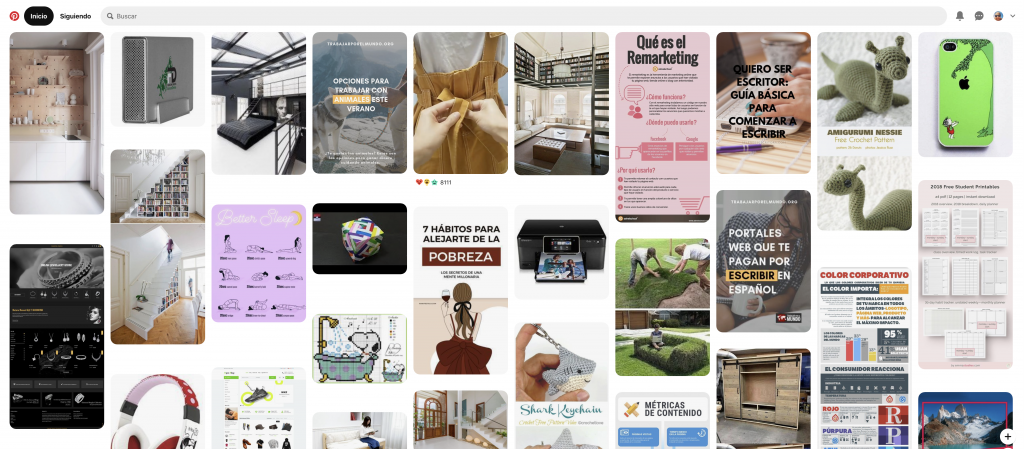
Pinterest is one of the most popular platforms for discovering and saving ideas, images and other visual content. It works as a visual search engine, somewhat like Instagram or Flickr, and serves as a tool for our digital marketing strategy.
The beauty of Pinterest is that each image (or Pin) can link to its own web page, and most importantly, other users do this too. This creates a community with very defined interests, the niches of old. Pins are saved in so-called boards.
If you work on a photography, decoration, recipe or fashion website, a blog with images or an online store, Pinterest can be a great promotion tool and an important source of traffic.
Verifying our website on Pinterest helps us understand visits and visitors with Pinterest analytics, and plan a strategy to increase traffic, including advertising.
Before you start: a business account
You need a Pinterest business account. This is essential to use professional tools like analytics, ads and more. A business account is free and very easy to set up.
Step 1. Convert your Pinterest account into a business account
Log in to your Pinterest account and open the menu at the top right. Go to Settings and look for the option to convert your account to a business account. It will ask for your business name, your website URL and the type of business. Click continue and you are done.
NOTE: if you do not want to mix your personal account with the professional one, the best thing is to create a new account from scratch as a business account. That way you will keep the two accounts separate. It is useful if your business account is focused on a niche and on a personal level you want to explore other categories more privately.


Step 2. Claim your website on Pinterest
Go back to your profile settings and enter Claimed accounts (in earlier versions, “Claim website”). Enter your website URL and click claim. Pinterest will show you several verification methods: HTML tag, HTML file or DNS record (TXT).
Personally, and for the least difficulty, I recommend the HTML tag: with the HTML file you would have to upload it to the root of your website by FTP, and DNS requires access to your domain zone. When you choose the HTML tag, a code will appear that starts with <meta name="p:domain_verify" content="IDENTIFIER NUMBER"/>. Copy it.
Step 3. Add the HTML tag to your WordPress website
There are several ways to add a tag to your website’s header (head). These are the simplest:
- With your SEO plugin: plugins like Rank Math or Yoast SEO have a section for pasting website verification codes (in Rank Math, within the general settings, under the webmaster tools; in Yoast, in the connection with other sites). Paste the code there and save the changes. The exact menu names may change with versions, so if you cannot find it, use the next option.
- With a plugin to insert code in the header: like WPCode (formerly “Insert Headers and Footers”). After installing and activating it, paste the code in the header section and save.
- With your page builder or theme, if it includes a custom header code option.
Once the tag is added, go back to the Pinterest screen and continue the process with the verify or continue button. If you use a caching plugin, clear the cache so Pinterest can see the code.
Sometimes verification is immediate and sometimes it can take up to about 24 hours. Once completed, you will see your website as verified in the claimed accounts section of your profile.
What to do after verifying your website
Now that your website is linked and verified, you can:
- Use Pinterest analytics to see which content works.
- Enable Rich Pins, which show extra information from your website (title, description, price…).
- Add the Save button to the images on your blog, so visitors can share your photos on their boards.
- Create ads and plan a traffic strategy.
Frequently asked questions
Is verifying my website on Pinterest free?
Yes, both the business account and the verification are free.
Why will it not let me verify my website?
The most common cause is that the code is not in the header of your homepage, or that the cache is showing an old version. Check that you have pasted the full code and clear the cache.
Can I verify a website that is not WordPress?
Yes. The method is the same: add the tag to the header, upload the file or create a DNS record.
If you have any remaining doubts or run into a problem when verifying your WordPress website on Pinterest, leave a comment or write to me from the Contact page. And if you want more, on this blog you will find articles such as connecting Google Business Profile to WordPress to polish your website and improve both search engine rankings and social media promotion.
To finish, the usual speech: if you liked this article, tell me in the comments, share it so it reaches more users and write to me on social media. I am always available to answer any question you have.
If you want your website to appear better in search engines and social networks, I can help with SEO services.